How to run your Kris Kindle
Everything on Secret Kringle, step by step, with the real screens. The organiser part takes about a minute. Everyone else only needs their email.
Set up the draw
One person does this. You'll need everyone's name and email, or use the WhatsApp link in part 3 instead.
Open secretkringle.com
Tap Start drawing names →.
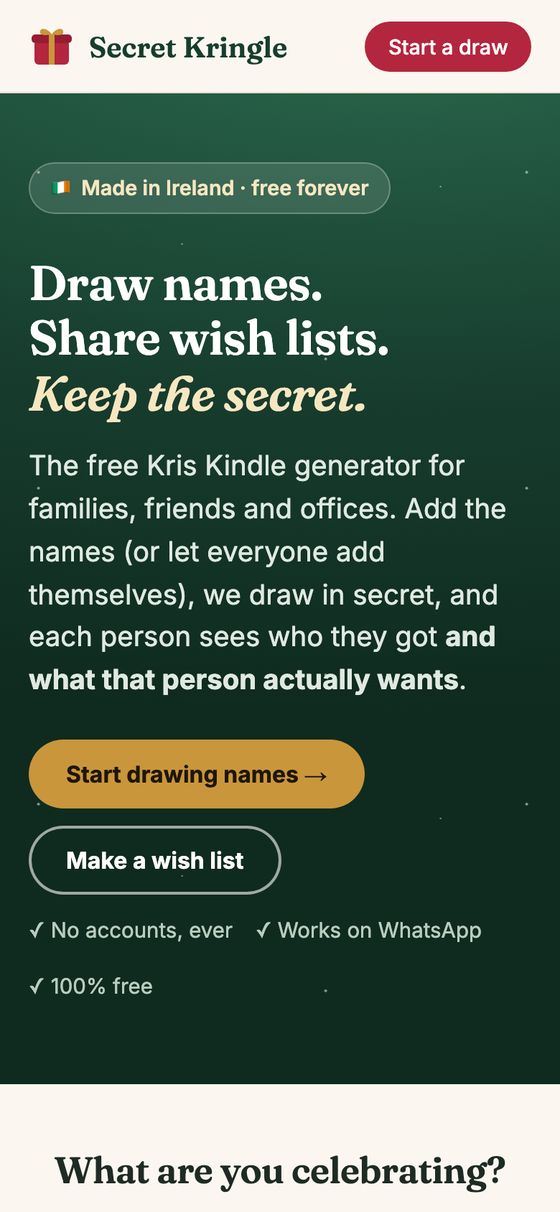
Pick Kris Kindle
Choose Kris Kindle, Family Christmas or Office. Check your country is selected, so the gift links go to the right Amazon.
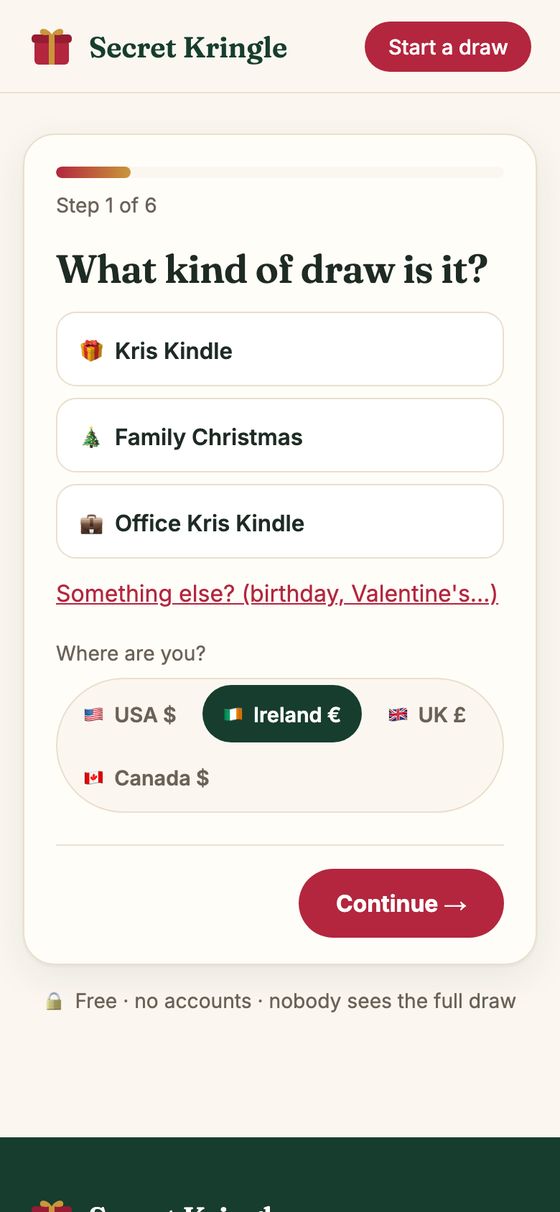
Your name and email
Your organiser link gets emailed here, so use an address you check.
Leave Include me in the draw ticked if you're taking part too.
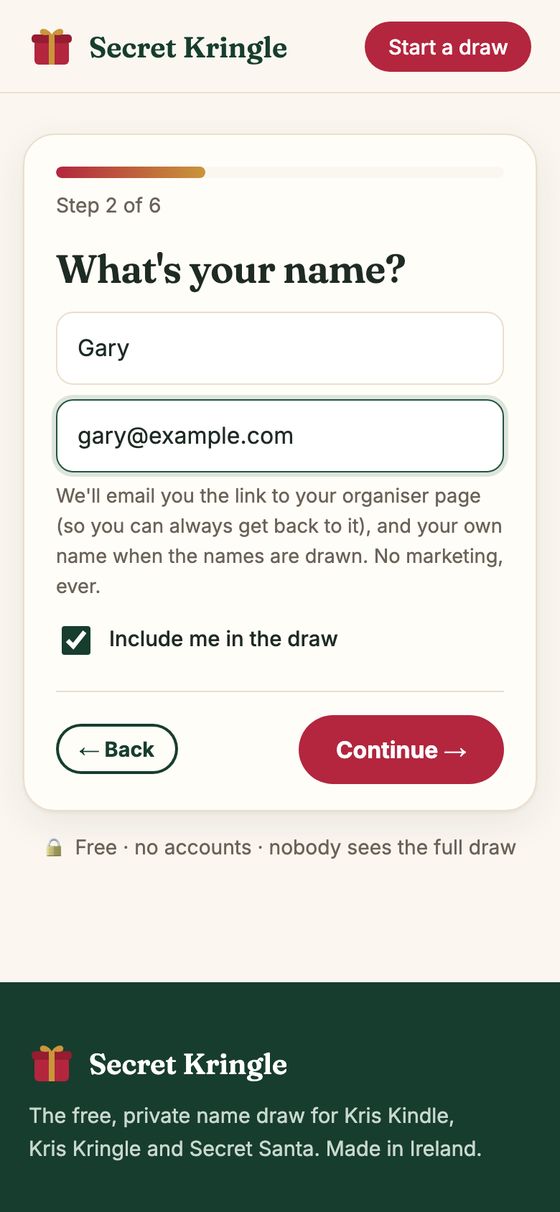
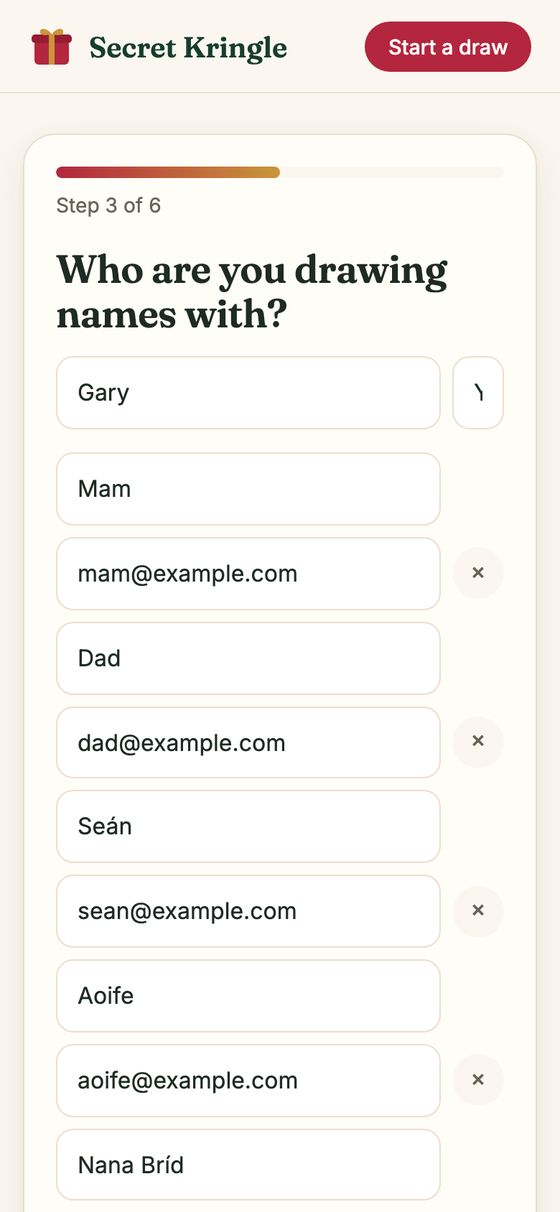
Add everyone
Type each name and email, or tap Paste a list and paste one person per line, like Mam, mam@gmail.com.
Two people with the same name? Add an initial, like "Seán B".
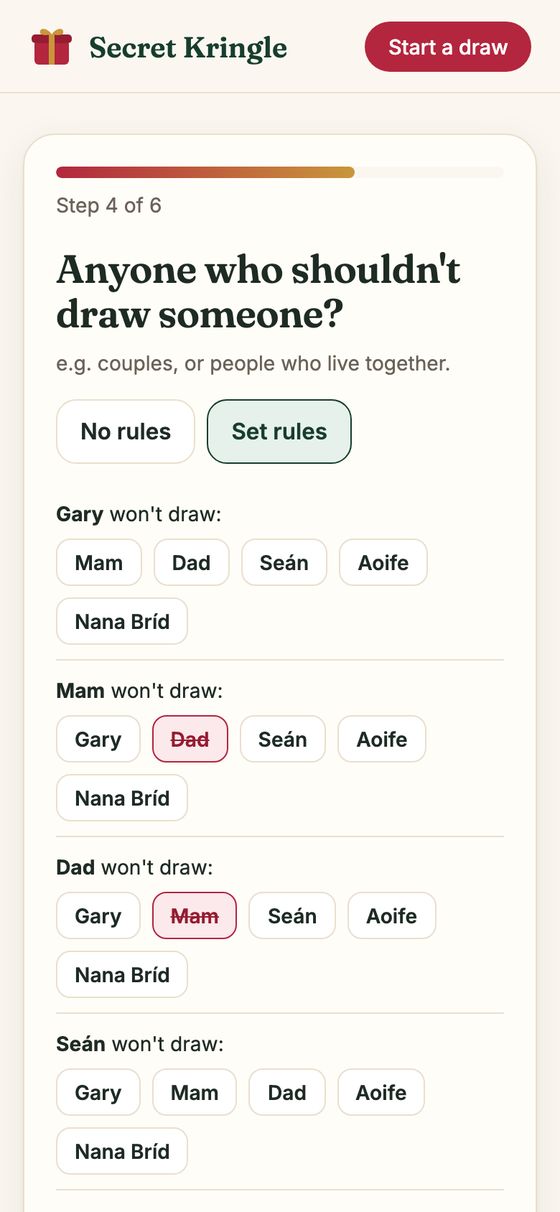
Set the rules
Tap Set rules, then tap who someone shouldn't draw. Keep Apply both ways ticked for couples, so Mam won't get Dad and Dad won't get Mam.
No rules needed? Tap No rules.
Pick a budget
Tap an amount, or type your own. It shows on everyone's page and filters the gift ideas.
Check the message and draw
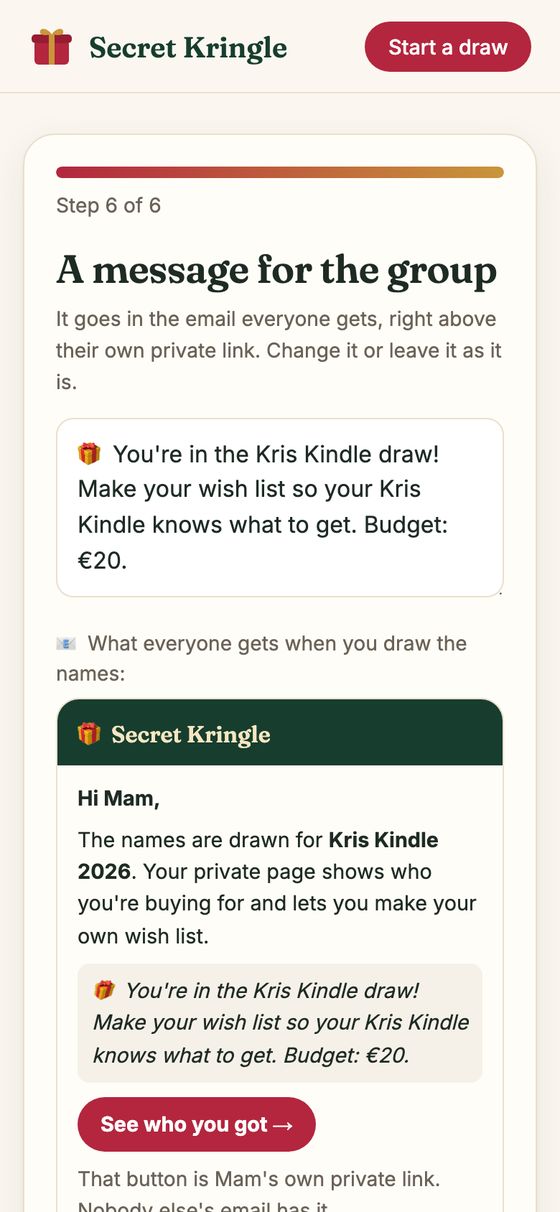
A short message is filled in for you. Change it or leave it. Below it you can see the email everyone will get.
When you're happy, press Draw names & send emails 🎉.
That's it, everyone's emailed
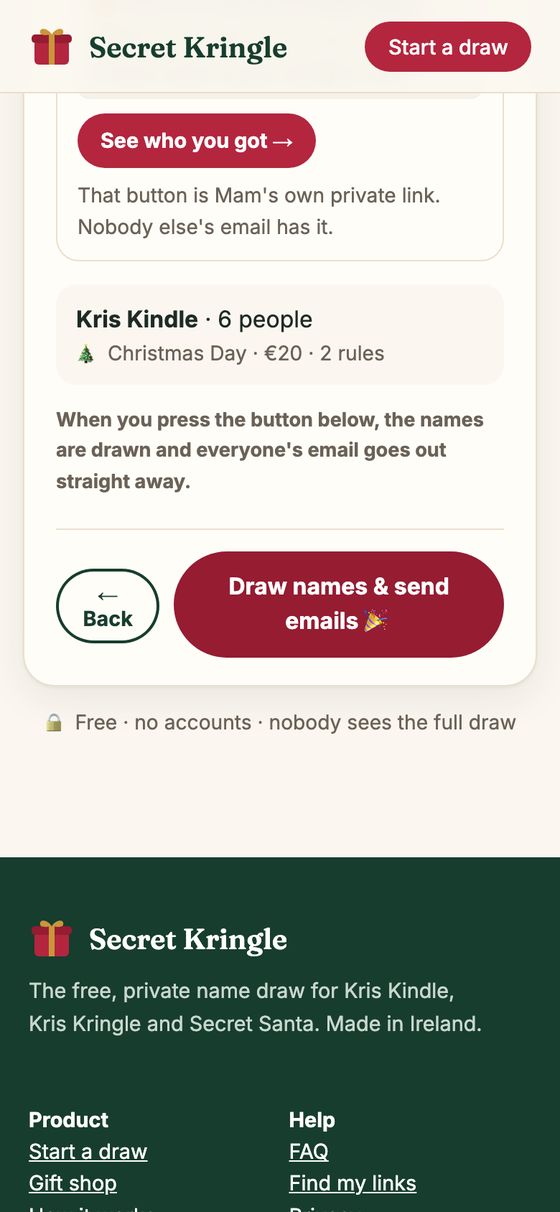
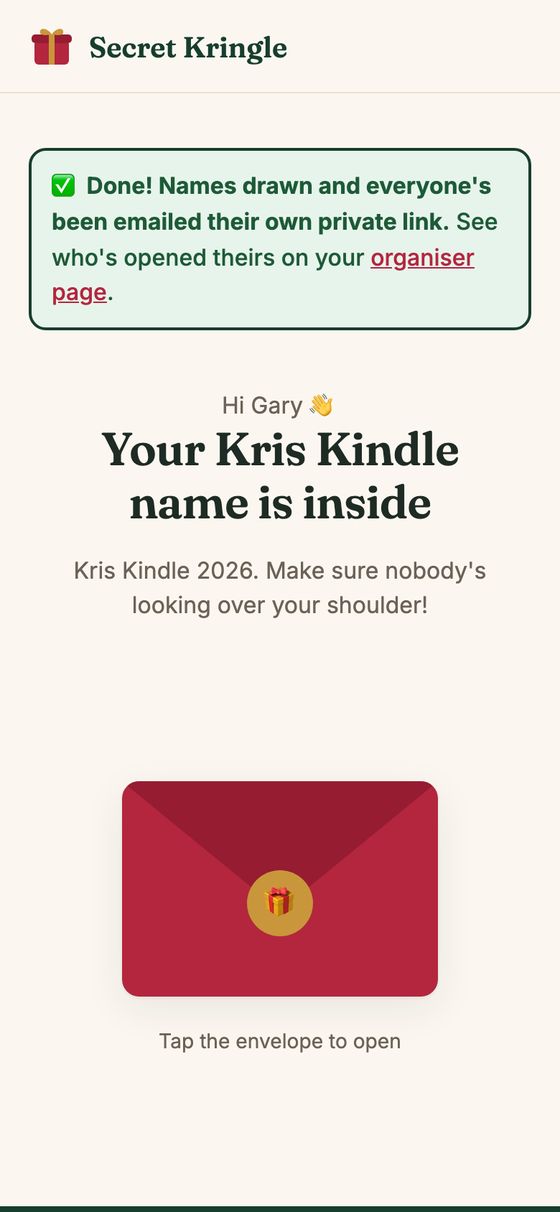
Names are drawn and each person gets their own private link. You land on your own page with your envelope, like everyone else.
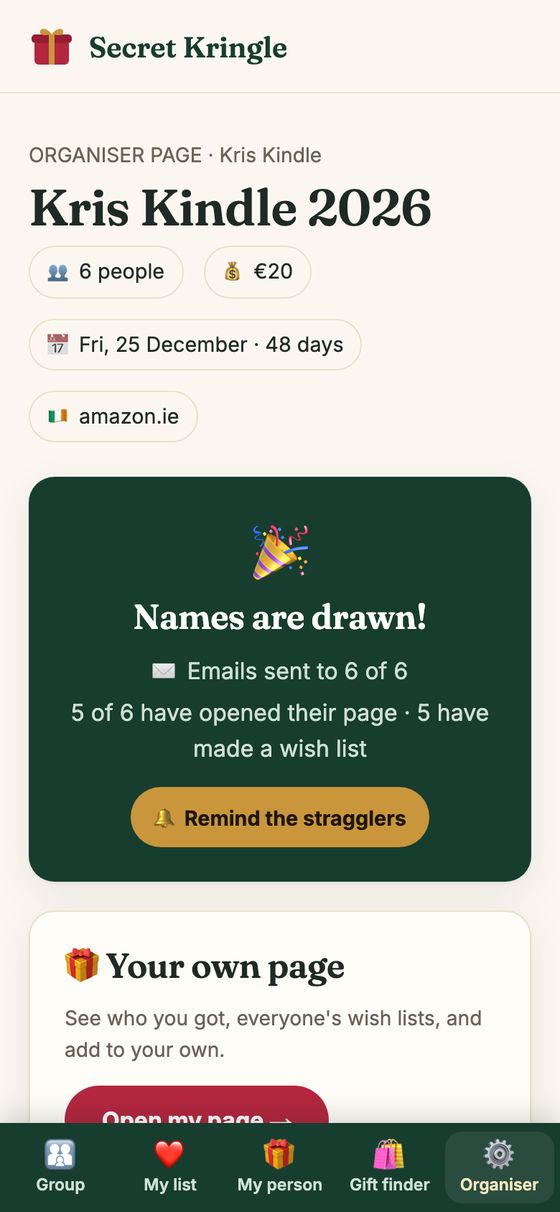
Keep an eye on your organiser page
It's in the email titled "Your Kris Kindle organiser link". Keep that email.
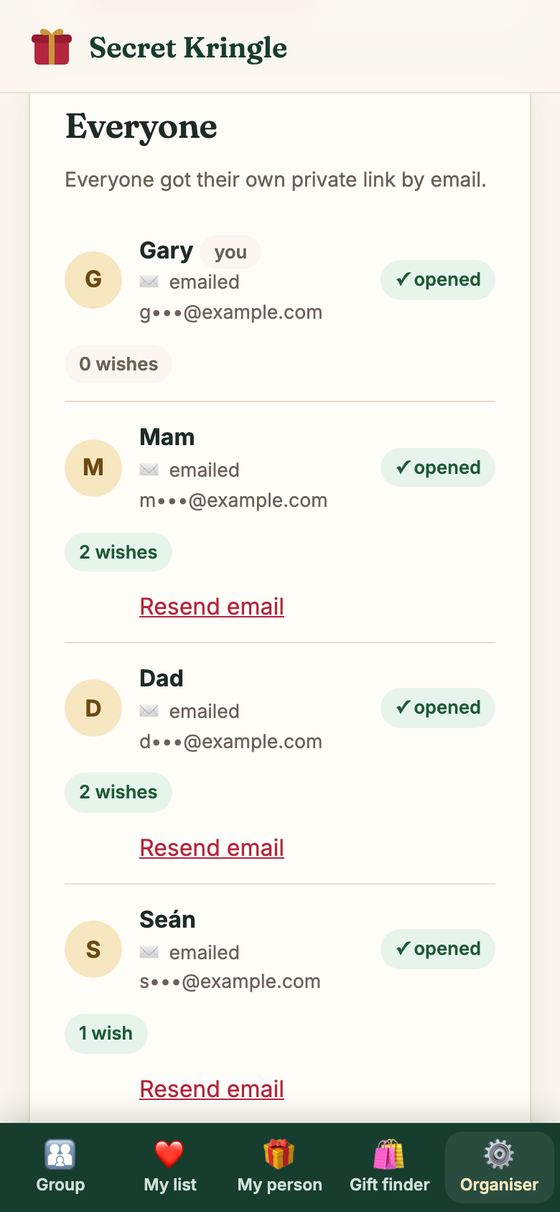
You can see who has opened their link and who has made a wish list. Press Remind the stragglers to nudge only the people who haven't.
Someone lost their email? Tap Resend email under their name.
Settings and next year
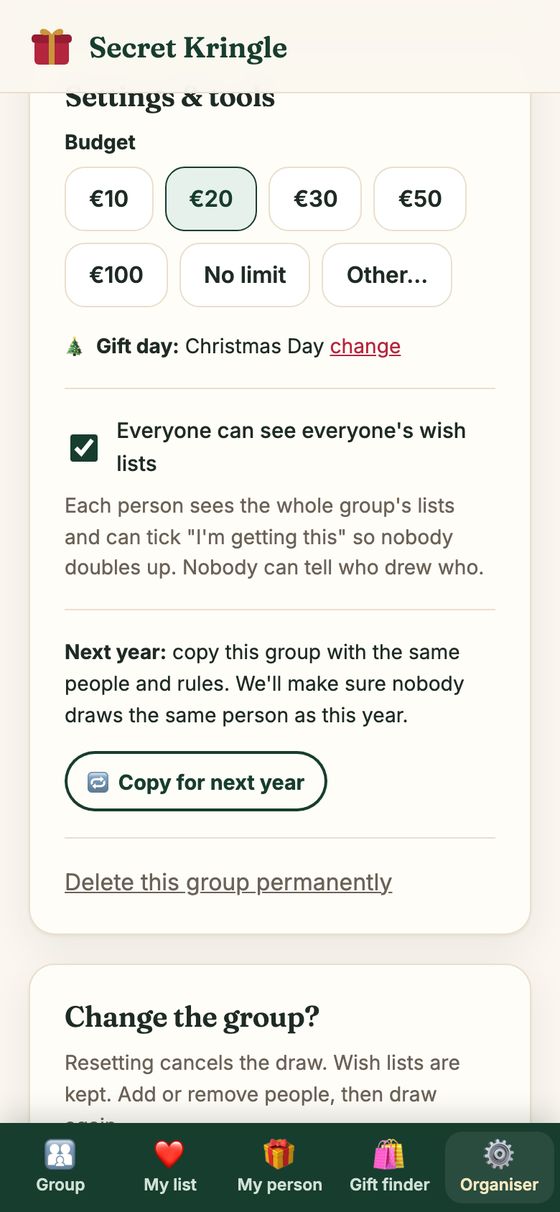
Lower down you can change the budget, turn the shared wish lists off, or Copy for next year, which keeps the same people and rules and makes sure nobody gets the same person again.
"Who got who" unlocks on gift day, so even you can't peek.
Open your name and make your list
This is what each person does after the email arrives. No app and no password, just the link.
Open the email and tap the envelope
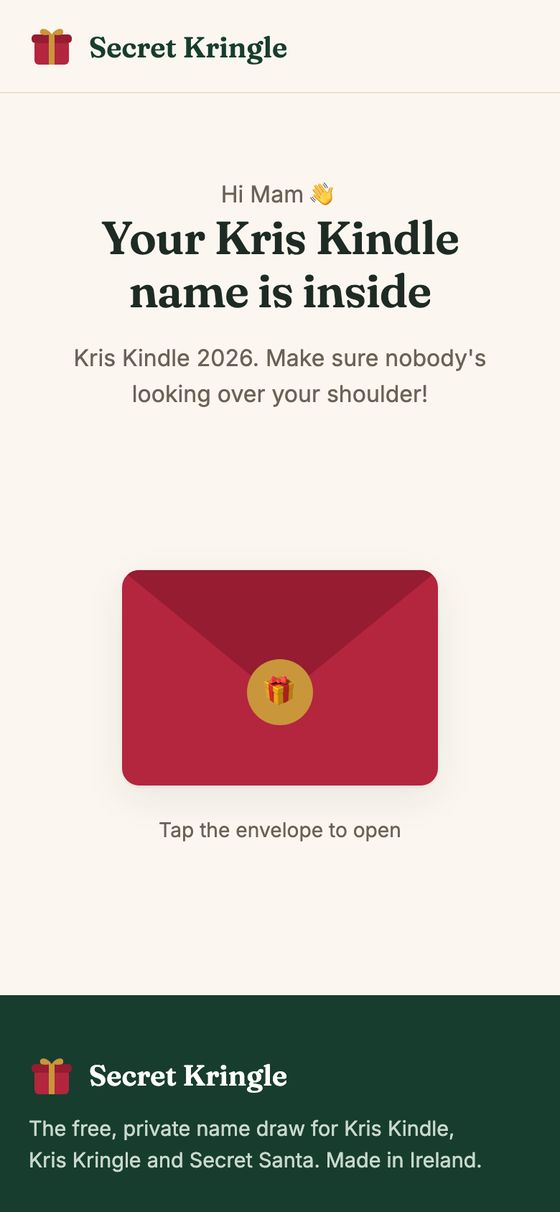
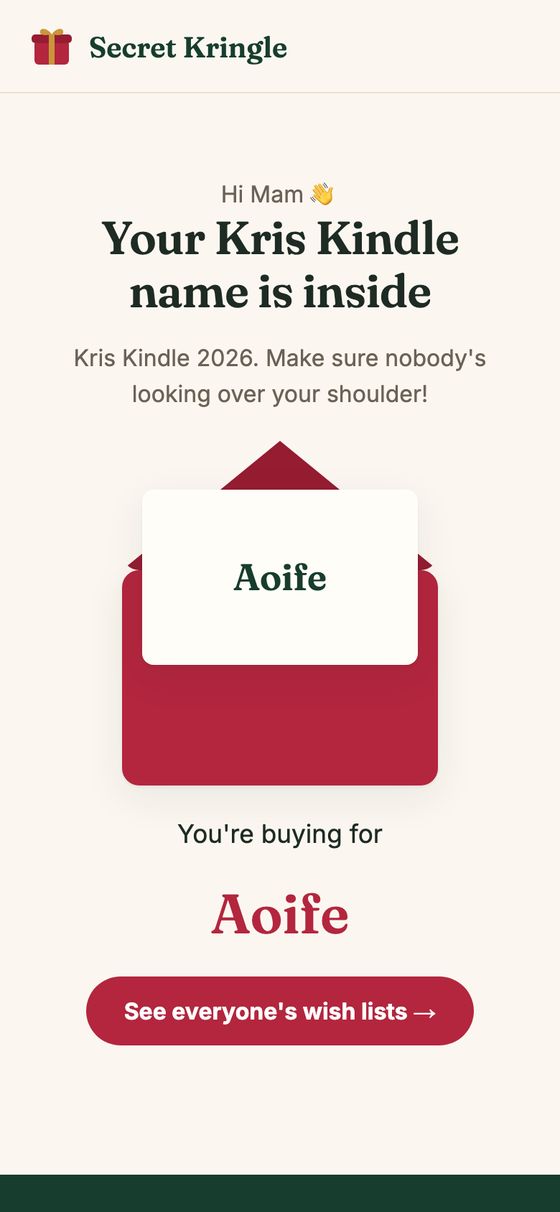
Tap See who you got → in the email. Make sure nobody's looking over your shoulder, then tap the envelope.
See who you're buying for
The name pops out of the envelope. Only you can see it.
See everyone's wish lists
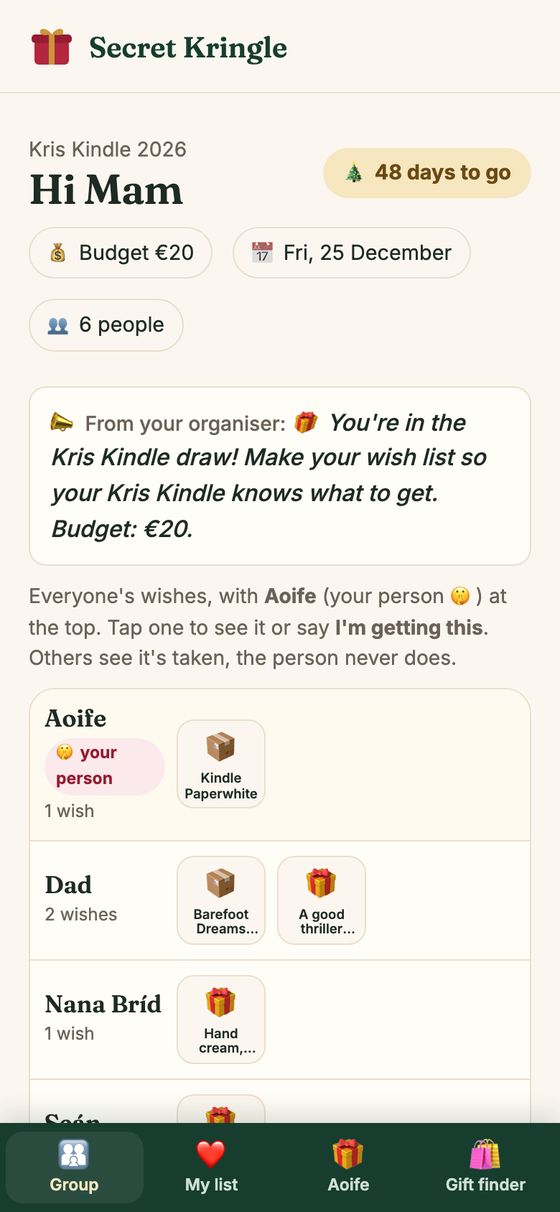
The Group tab shows everyone's lists. Your person is at the top, marked your person. Nobody else knows who you have.
Claim a gift so nobody doubles up
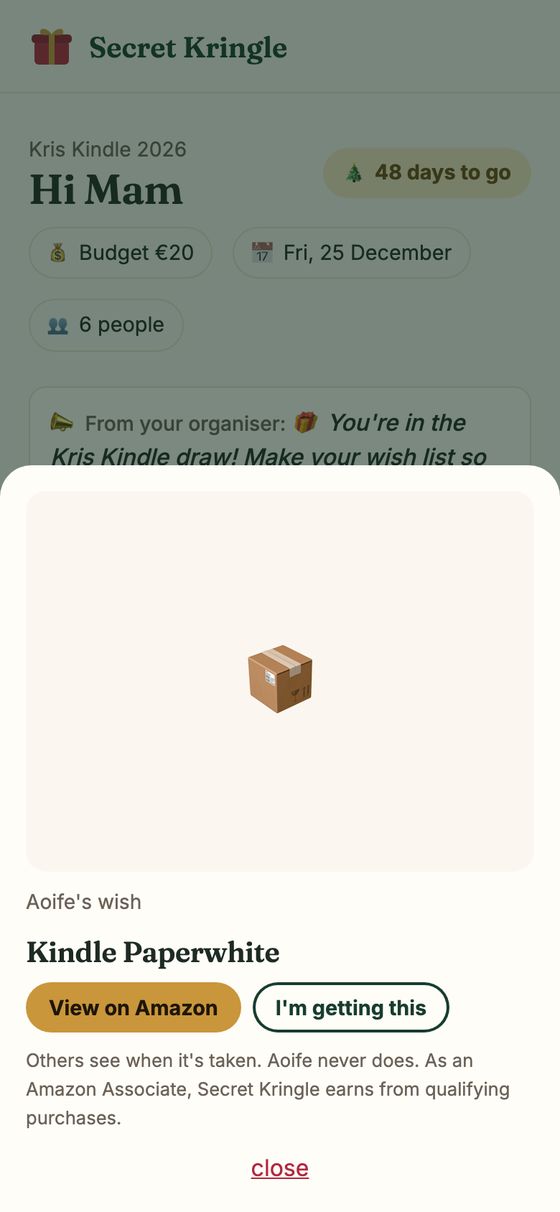
Tap any gift, then I'm getting this. Everyone else sees it's taken. The person whose list it is never sees it.
Buy it and mark it bought
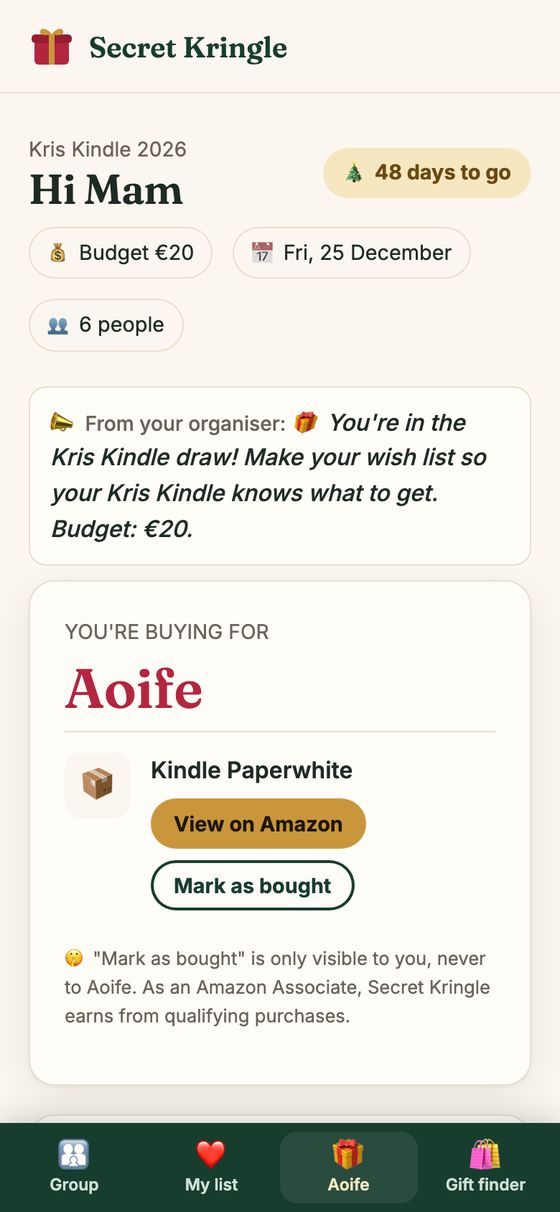
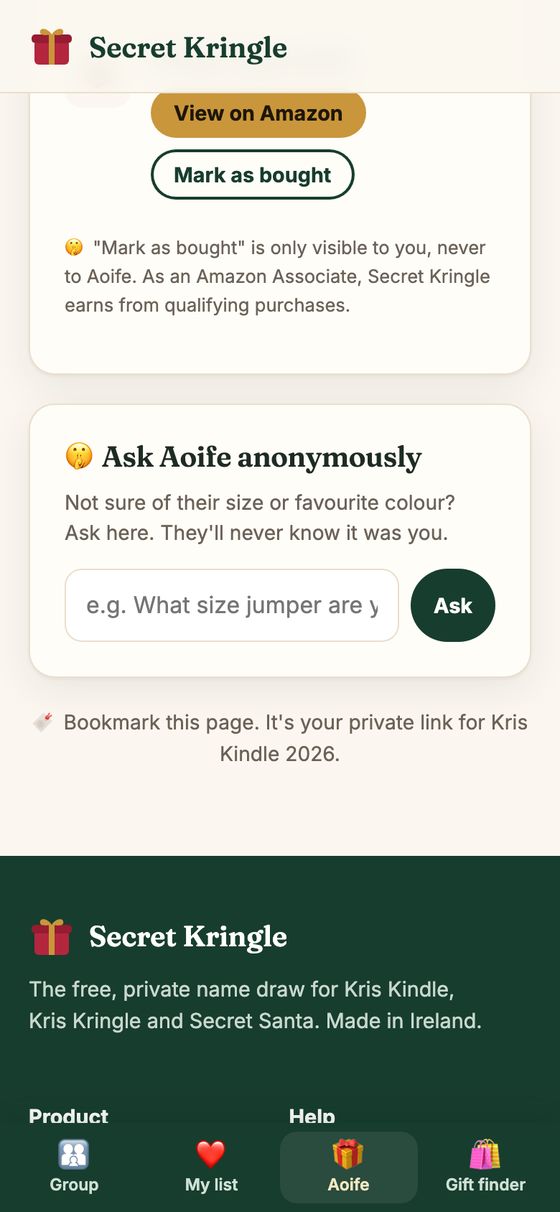
Your person's tab shows their list. Tap View on Amazon to buy, then Mark as bought.
"Mark as bought" is only visible to you.
Not sure? Ask them anonymously
Type a question, like their jumper size, and tap Ask. They get an email and answer on their page. They never find out it was you.
Make your own wish list
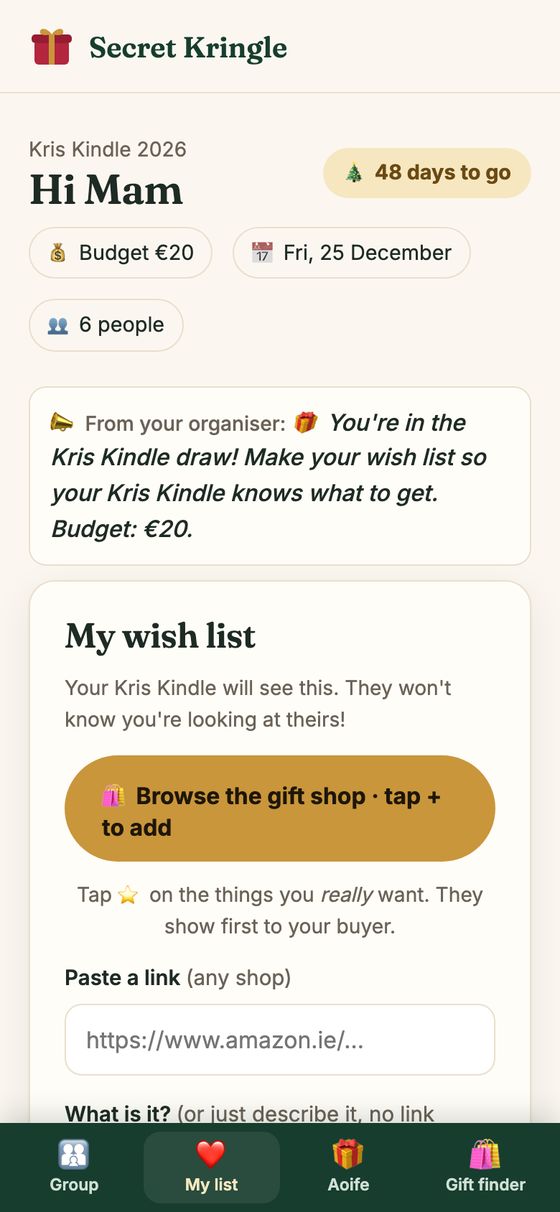
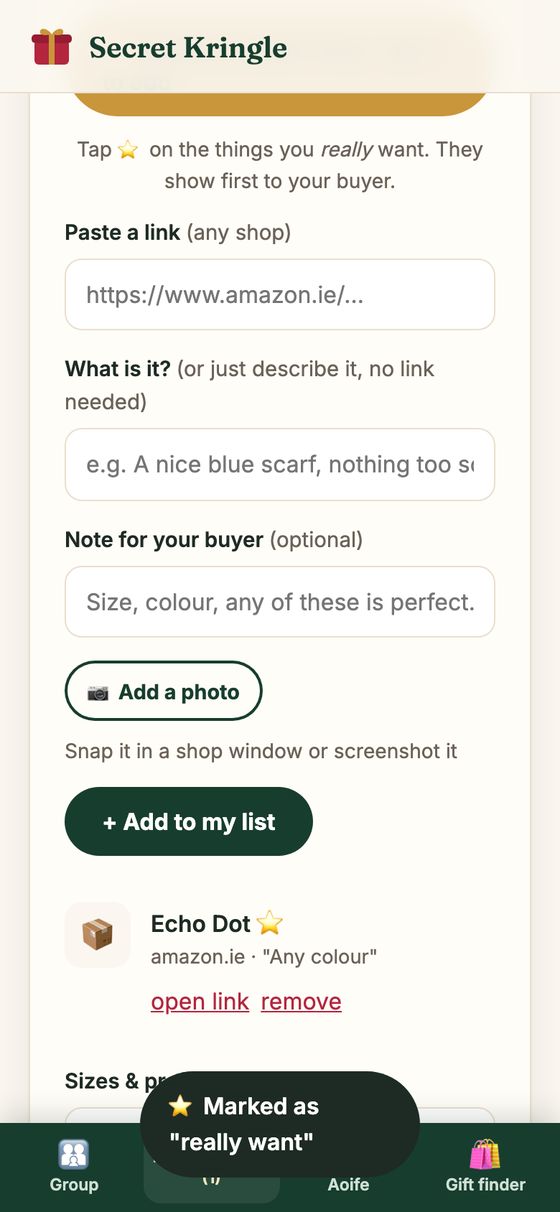
Open My list. Paste a link from any shop, or just describe what you'd like ("a good thriller book"), or add a photo of something you saw in a shop window.
Tap the ⭐ on the things you really want. They show first to whoever has you.
Stuck for ideas? Use the Gift finder
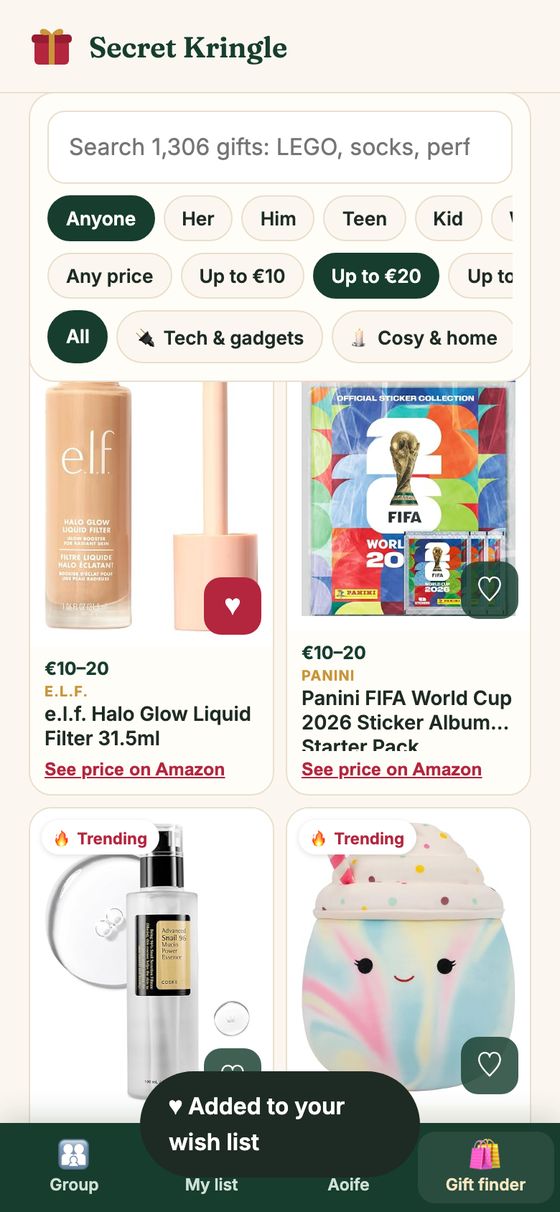
Over 1,300 gifts you can filter by who it's for, age and budget. Tap the ♡ on anything to add it to your list.
Don't have everyone's email?
Send one link to the family WhatsApp and let people add themselves.
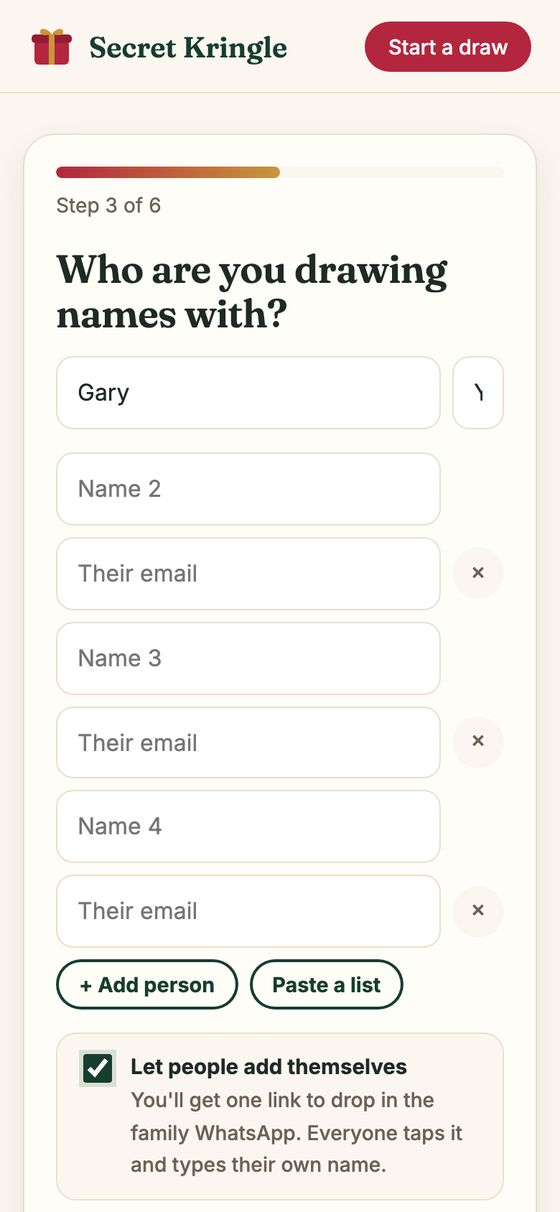
Tick "Let people add themselves"
On the Who are you drawing names with? step, skip the names and tick the box at the bottom. Then finish the rest of the steps as normal.
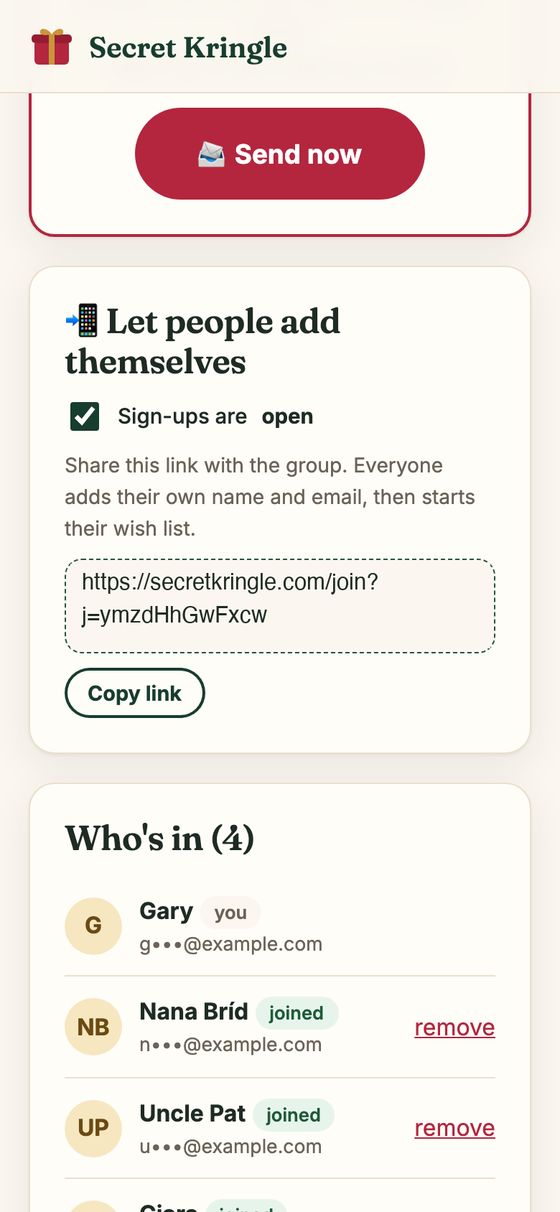
Copy the join link into WhatsApp
Your organiser page shows the link. Tap Copy link and paste it into the family group.
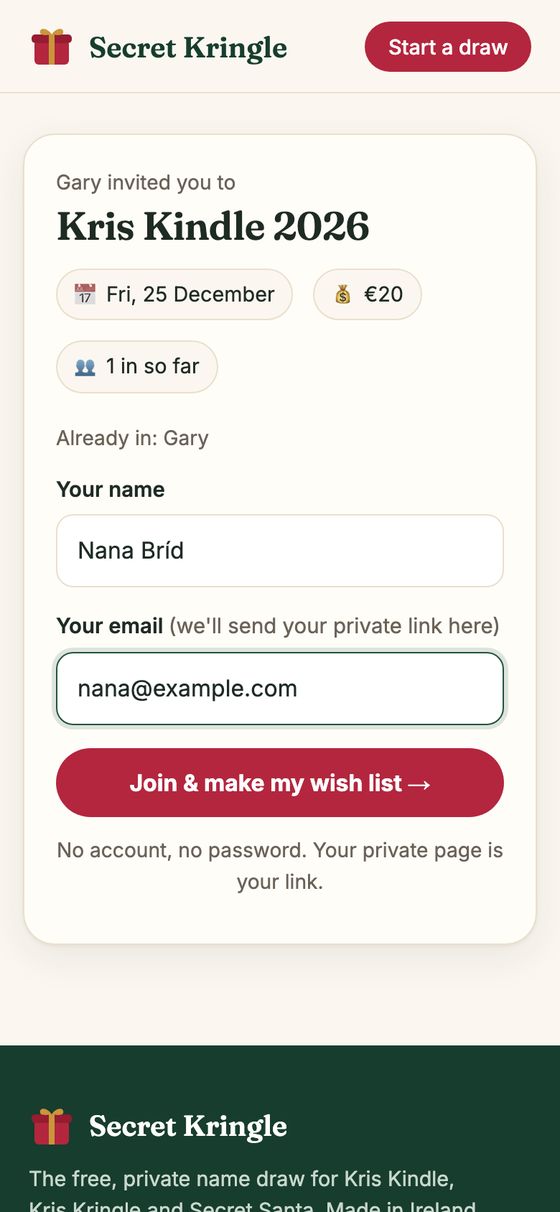
Everyone taps it and adds themselves
Each person types their name and email and taps Join & make my wish list →. They can start their list straight away.
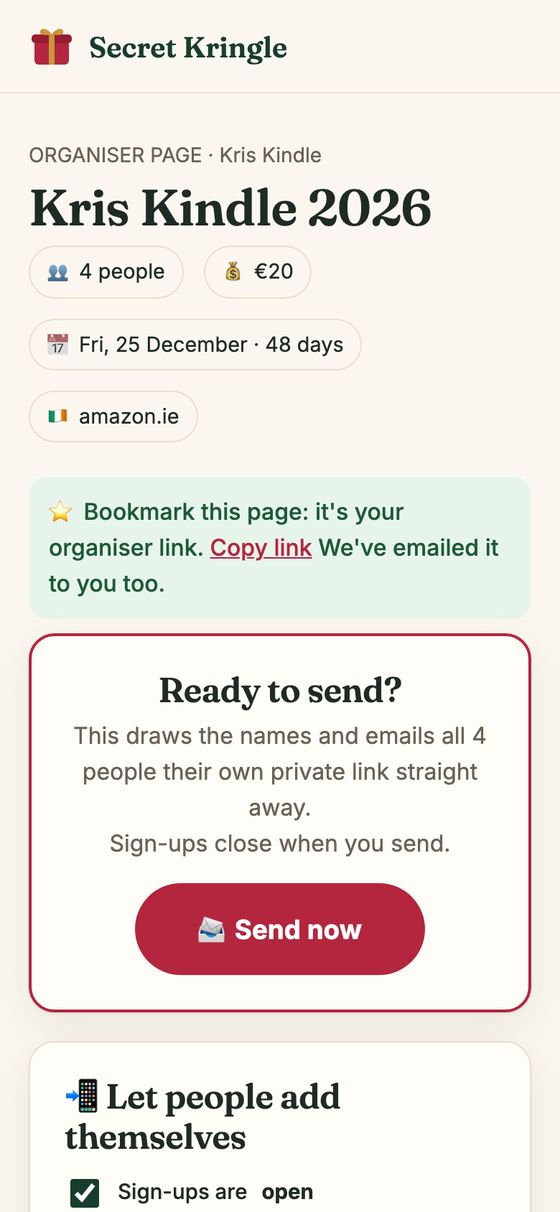
When everyone's in, press Send now
Your organiser page shows each person as they join. When the whole family is in, press 📨 Send now. Names are drawn and everyone gets their link by email.
You need at least 3 people. Sign-ups close when you send.
Two more things it does
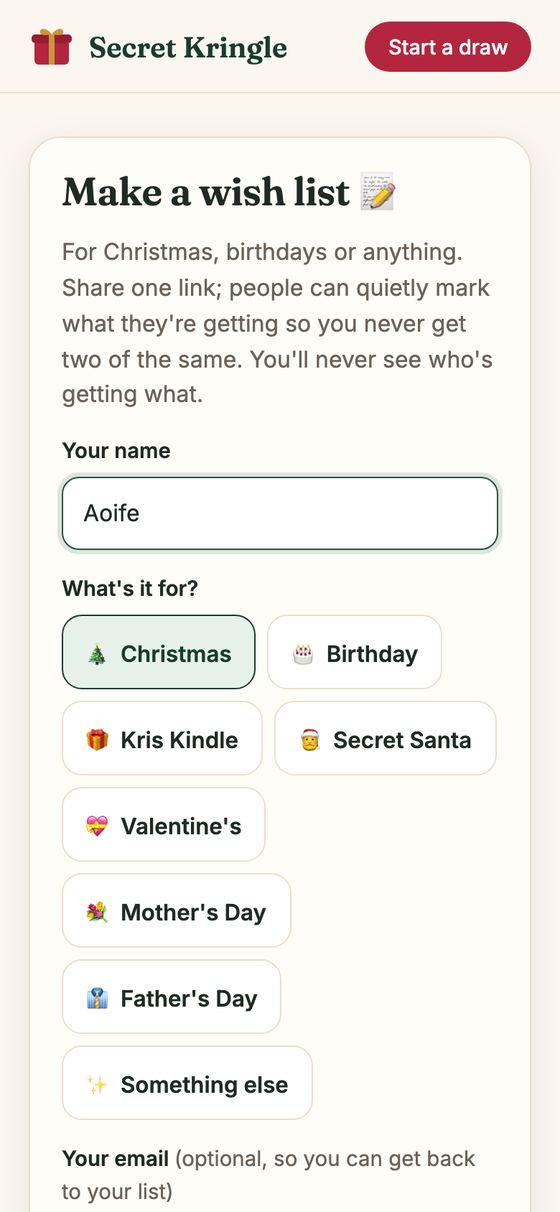
A wish list for any occasion
Birthday, Mother's Day, or a list for Santa. Tap Make a wish list and share the link. People can quietly mark what they're getting, and you'll never see who's getting what.
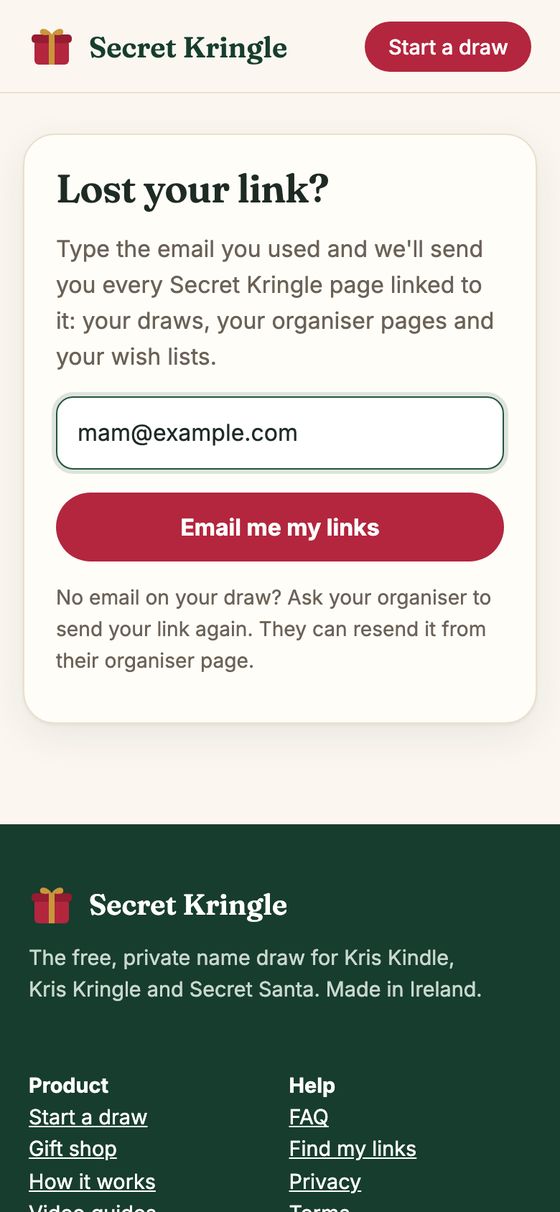
Lost your link?
Go to Find my links, type your email, and every Secret Kringle page linked to it gets emailed to you again.
Prefer video? Watch the 30-second guides.